What is DGFT ? (Directorate General of Foreign Trade)

DGFT (Directorate General of Foreigh Trade) is the Agency of ministry of commerce and industry of Government Of India.

They are carrying out of the import and export policies of India. or we can say that they are responsible for execution of the import and export policies.

Till 1991 they were known as Chief controller of Imports and Exports (CCI&E). DGFT always plays a crucial role in the development of trading relations with various other nations. They help in improving not only economic growth but also provides a certain drift which needed in the trade industry. They are promoting Exports and Imports. Their regional offices are established across the country.

Mentioned below are the Roles and Responsibility of DGFT.

– DGFT is the licensing authority for exporters, importers and export and import business.
– DGFT entrusted with the responsibility of implementing various policies regarding trade. Like Foreign Trade Policy.
– DGFT can prohibit, restrict and regulate exports and imports.
– They are carrying responsibility of issue notifincations, public notices, circulars, etc…
– DGFT is responsible for grant 10 digit IEC (Import-Exporter Code), which is primary requirement of Import and Export.
– They are introduced different schemes from time to time regarding trade benefits throughout the country. They are also introduced ITC (HS CODE) schedule-1 for imports items in India and schedule-2 for Exports items in India.

DGFT performs essential roles in export imports as well as maintain trading relations with other nations.

Difference Between Bank guarantees and Letters of Credit

Bank guarantees and Letters of Credit are both used in international trade. Still Bank Guarantees is much larger than Letter of credit.

Bank Guarantees are often used in large trade like Property market and infrastructure to eliminate risks while Letters of Credit are mostly used in commodity markets and other international markets.

Let’s understand pretorial details of Both.

What are Bank Guarantees?

A Bank Guarantee is a bank’s commitment to payment to a beneficiary if the other party will not fulfill their contractual obligations.

Bank Guarantees help companies to eliminate any risk arising from other side of the transaction,

and play a vital role in high-value transactions.

The agreed amount is referred to as the guaranteed amount and will almost fall in favors of a beneficiary.

Additionally, if one party fails to pay than the other party can then invoke the bank guarantee by filing a

claim with the lending bank and receive the guaranteed amount. Letter of credit and Bank Guarantees protect both parties involved.

As Mentioned below There can be many forms of Bank Guarantees.

  • Advanced Payment Guarantee – Typically ensures the performance of a commercial contract.
  • Loan Guarantee – Promises to assume the debt obligation of the borrower if they face default.
  • Performance Guarantee – Ensures the full and due performance of the contract in line with the original contract.
  • Deferred Payment Guarantee – A promise for a payment which has been postponed.
  • Shipping Guarantee – A written guarantee which will be presented to the carrier in the event of goods arriving before the arrival of the shipping documents.
  • Trade Credit Guarantee – This covers the providers of a good/ service against the risk of non (or late) payment.

What is Letter of Credit

A letter of credit is a commitment taken on by a bank to make a payment to a beneficiary when some conditions are met.

Mostly used in commonly by merchants involved in imports and exports of goods on a regular basis.

Protects both parties in the transaction but mostly it is Promote the exporter. A Letter of Credit can be used in the shipment of goods or for the completion of a service.

As Mentioned below There can be many forms of Letter of Credit

  • Import LC – Short-term cash advance that enables an importer to meet immediate payments.
  • Export LC – A document containing instructions to the buyer’s bank that they must pay you on the condition that the agreed specifications are met.
  • Revocable LC – uncommon due to the fact these LoC’s can be canceled by the bank at any time, for any reason.
  • Irrevocable LC – This guarantees a buyer’s obligations to a seller.
  • Confirmed LC – Present when the issuing bank may have a questionable quality of credit.
  • Unconfirmed LC – A letter of credit that does not have the confirmation of any bank.

Moreover, Letter of Credit are used in International trade transactions whereas Bank Guarantees are used in Domestic Transactions.

Letter of Credit Provide protection to Beneficiary only while Bank Guarantees cover risk of both parties.

Accounts Receivables and Payables

This post may be more useful for new comers. it is more related to Accounting rather than Functionality, yet it is useful because it is essential part of Balance Sheet Receivables and Payables are crucial part of any accounting systems because it is directly associated with cash flow of company.

As per accounting point of view Basic different between Payable and Receivables are money which is not collected from customers yet And payables are what you must pay to Vendors. Money which is not paid to Vendors yet.

Let’s understand basic details of Receivables and Payables.

  • Receivables

Receivables is part of Asset. it represents money from customers who brought your product and it will be resulting in cash. Cash will come to your company.

There are two types of Receivables.

Gross Receivables and Net Receivables.

Gross receivables mean all receivables. All open invoices which is due. gross receivables are always recorded in company’s balance sheet.

Net receivables mean all receivables minus expected amount of bed debts. means Net receivables = Gross receivables – bet debts.

Account receivable will be recorded at the time of Sale. Receivable will be increased because Customer will pay that Amount. After Receiving payment from Customers Account receivable will decrease and Cash will be increased.

Microsoft have provided strong Report for the Receivable Analysis. The name of Report is Aged Account Receivable.

This Report is helpful for analysis of Customers Invoices and Payments by specific Date Range. Report itself provides different different Aged by Options like Due Date, Trans Date and Document Date.

  • Payables

Payables is part of Liability. it is Liability on a company Balance sheet and part of Current Liabilities.

when we post any Purchase Invoice purchase account will be debit and Vendor account will be credit now at the time of payment Vendor Account will be Debit and Cash account will be Credit.

Payables represent company owes for the Vendors. it is obligation to suppliers and other creditors. it is money which company must pay to vendors against goods or services.

Payable comes under liabilities account as Balance will increased with Credit Transaction. So Payable balance will be increased at the time of Invoices and it is decreases at the time of Payment.

Same as Receivables Microsoft also Provides Report for the Payable Analysis. The name of Report is Aged Account Payable.

This report is helpful for analysis of Vendors Invoices and Payments by specific Date Range. Report itself provides different different Aged Method like Due Date, Trans Date and Document Date.

In both report you can also inputs Length of periods according to your requirements.

How To Add Workspace in D365 F&O

Workspace have been added to almost every module in Dynamics 365 for Finance and Operations.

Workspaces in Dynamics 365 Finance and Operations are personalized cubes. It contains Information, reports and some of transactions to make system more user friendly. Workspace can help users to access some relevant information or functions from one spot.

Workspaces offers new navigate path for users to make it easier to do their jobs be narrowing the scope of what they need access to.

The workspaces available to each individual user are subject to their role or roles in the organization and the corresponding security set up for those roles in Dynamics 365 for finance and operations.

Mentioned below steps displays how to Add Workspace in D365 Finance and Operations.

Go to The Home Page and Click on Blank Space as Mentioned below. After clicking mentioned below Box will open. Now Click on TilePageContainer

Now Mentioned below information Box will open

Now Click on Add a Workspace. System will create mentioned below Blank Workspace.You can Rename it After clicking on Personalize. I have Renamed it to Temp

You can Add any page to any workspace. Like I want to Add All Vendors page to my Workspace. You just need to Click on Options and Click on Add to workspace as mentioned below.

You will get mentioned below options after Clicking on Add to Workspace. It is depending your requirement in which form you required respected object in new workspace. I have selected Tile for this one.

You can see. Workspace is ready to Use with respected object.

Basics of Discount and Terms of Payment

While in other systems where payment term and Discount always are set with single assignment, But in D365 Terms of payment and discount classified differently. It will not set with single assignment.

The master data of terms of payment and discount are for customers and Suppliers jointly managed, it is managed with the respective form in the Vendor menu as well as in the debtor menu.

The due date and the discount period are calculated from the date of booking. If no Document date is recorded in a transaction, then posting date used for the due date calculation.

Terms of payment

The form for managing payment terms can be found in mentioned below Path.

You can find respected Terms of Payment in Payable and Receivable.

Account Payable ->Payment Setup ->Terms of payment

Account Receivable ->Payment Setup ->Terms of payment

You can see Payment Terms in Left Side. Settings for the due date calculation The selected terms of payment are managed in the right side area.

Different payment methods:

Net defines a calculation based on Document Date, Current Month a calculation from the end of the month.

Cash Payment

Terms of payment for Cash on delivery can be defined by choosing payment method “Payment on Delivery” and Cash payment is set to Yes.

In this case GL Account for Cash should be entered in Cash. At the time of Invoice posting bill is settled with this payment.

Cash Discount

The form for managing Cash Discount can be found in mentioned below Path.

You can find respected Terms of Payment in Payable and Receivable.

Account Payable ->Payment Setup ->Cash Discount

Account Receivable ->Payment Setup ->Cash Discount

Discount creation conditions is same like Payment Terms, For Cash Discount in addition the discount percentage and the G/L accounts for the booking of cash discount are to be deposited.

As mentioned in below screen You can find discount setup related fields including GL accounts.

Physical Inventory Cost Vs Financial Inventory Cost

Inventory transactions can be updated physically and financially. In D365 some types of physical and financial transactions will increase quantities, where other types of transactions will decreased them.

Difference between Physical and Financial Posting.

Physical Posting Financial Posting
Date
Price
Quantities
Examples
Purchase Order Receipt
Sales Order Delivery
Production Order Pick
Date
Price
Quantities
Examples
Purchase Order Invoice
Sales Order Invoice
Production Order Ending

Physical cost and Physical quantity will increased with Purchase Order packing slip and GRN.

Inventory report will display On-hand available physical quantity and physical value.

Now, at the time of Invoice, inventory will update with financial cost and posted Quantity.

Customer Transactions

Customer transactions page displays all customers Transactions. Any type of Customer Ledger Entry will be displayed in customers Transactions.

Customers Transactions page can open from mentioned below Path.

Accounts Receivable —> All Customers

You can view Transactions from mentioned below Actions. System will display selected Customers Transactions. You can see one more button of Global Transactions. This button displays all Transactions for Customer across all legal entities. Means, Customer Transactions list page shows transactions only for legal entities that the user has access based on User Rights.

As mentioned below you can View Settlement of any Transaction. View settlement means system will displayed Applied Transactions.

After Clicking on View Settlement. Mentioned below window will Open. From mentioned below window you can perform other Tasks like View Related, View History, View Accounting etc..

  • View related – This Button displays payment journal transactions and global journal transactions for that customers.
  • View history – This Button displays settlement history for that Transactions.
  •  View accounting – Displays all vouchers that are related to the selected documents.
  • Export – Export the selected vouchers to Microsoft Excel.
  • Undo settlements – This button appears only if the original document that was selected was fully settled. You can Reverse settlements effects from this Button.

Task Recorder in D365

Hi! Folks,

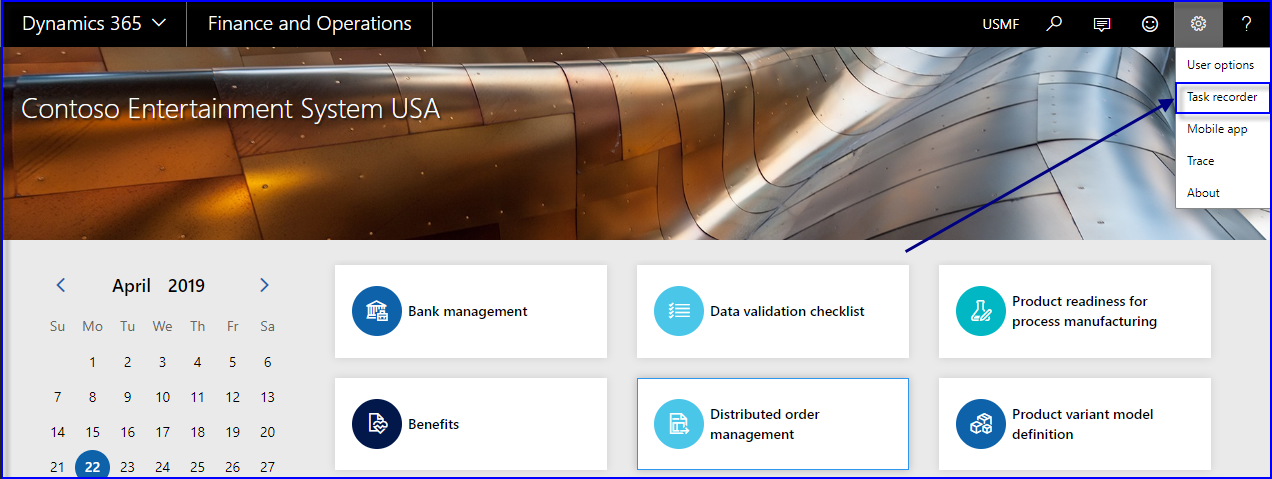
This one small discussion is regarding Task Recording Function with Dynamics 365.

Microsoft has reconstructed this functionality. This can record user actions. It is capture screen shot which can be useful in Documentations as well.

Mentioned below are the steps for Creating new recording using Task Recorder. As mentioned below go to Setting and click on Task Recorder.

After Clicking on Task Recorder. Mentioned below screen will open. You can Click on Create Recording and give Recording name before start recording.

After Clicking on Create Recording. Mentioned below screen will open.

Now system will Record each User Action as mentioned below. Anytime User can Stop Recording.

After clicking on Stop. Mentioned below screen will Open.

As mentioned you can Save and Export same recording in word document.

Sales Order Status with Dynamics 365 Finance and Operations

Hello All,

Today’s blog is regarding Statuses of Sales Orders and Inventories. System updating statuses at every stage.

Open Order

Open Order is the first status that System will update on Sales Order. it means when you create a sales order the status of the order is set to Open order.

 At the same time, the system creates one inventory transaction record for each sales order line. The only exception to this rule is when the sales order type is set to Journal.

In this case, no inventory transactions are created and no postings or updates can occur to the sales order.

As mentioned in screen Inventory transactions can have either issue status or receipt status.

Sales orders typically have an issue status (except return orders, which have receipt statuses), and the original status is On order when you create the new order.

Next, when you update the picking list for a sales order, the system will update the issue status of the inventory transaction to Picked.

However, the sales order status is not updated when a sales order is picked. It will remain in Open order status.

Delivered

Later, when you generate a packing slip for the sales order, the status of the sales order is updated to Delivered,

                                                                         Deducted

 The issue status of the inventory transaction related to the sales order is updated to Deducted.

The final update is the invoice being generated for the sales order. When the sales order is invoice updated, the status of the sales order moves to Invoiced and the issue status of the related inventory transaction is updated to Sold.

Sold

n